
How to delete your Twitter account from mobile on iPhone and Android
How to delete your Twitter account from mobile, with X's current iPhone and Android steps screen by screen, what to do in the app before you tap, and the mobile habits that quietly undo a deletion.


On a phone, deleting a Twitter account means deactivating it in the X app and then leaving it alone for 30 days.
To delete your Twitter account from mobile, deactivate it in the X app and stay signed out for 30 days.
• Tap the navigation menu icon, or your profile icon on some Android phones, then "Settings and privacy".
• Tap "Your account" on iPhone or "Account" on Android, then "Deactivate your account".
• Tap "Deactivate", enter your password, tap "Deactivate" again, and confirm with "Yes, deactivate".
The walkthrough below adds each screen, what to do before you tap, and the mobile habits that undo a deletion.
How to delete your Twitter account from the iPhone app
Twitter is now X, and the iPhone route takes five steps inside the app. X's help page on deactivating your account lists them in this order.
Open the deactivation screen
- Open the menu. Tap the navigation menu icon, then tap "Settings and privacy".
- Go to your account settings. Tap "Your account", then tap "Deactivate your account".
Confirm the deactivation
- Read the information. Read the account deactivation information, then tap "Deactivate".
- Enter your password. Type it when prompted, then tap "Deactivate".
- Confirm. Tap "Yes, deactivate" to proceed.
The account is now deactivated. If you stay signed out for 30 days, X deletes it.
How to delete your Twitter account from the Android app
Android is nearly identical, with two differences in the first steps. X describes them on the same page.
Open the deactivation screen
- Open the menu. In the top menu, you'll see either a navigation menu icon or your profile icon. Tap whichever you have, then tap "Settings and privacy".
- Go to your account settings. Tap "Account", then tap "Deactivate your account".
Confirm the deactivation
- Read the information. Read the account deactivation information, then tap "Deactivate".
- Enter your password. Type it when prompted, then tap "Deactivate".
- Confirm. Tap "Yes, deactivate".
The label to watch for is "Account". On Android it replaces the "Your account" wording used on iPhone and the web.
Why the mobile steps say deactivate, not delete
You won't find a delete button in the app, and that isn't a missing feature. On X, deletion is what deactivation turns into.
X says deactivation is the first step to deleting your account permanently, and it lasts 30 days. If you don't access the account within that window, the account is deleted.
So the mobile steps above are the whole job of deleting a Twitter account from mobile. The rest is waiting, and making sure nothing signs you back in.
If your phone doesn't show the menu the old guides describe
Many guides still tell you to tap your profile picture and open a "Settings and Support" section first. X's current steps don't use that label anywhere.
Its instructions start from the navigation menu icon on iPhone. On Android, X says you'll see either the navigation menu icon or your profile icon, depending on your version.
If your screen doesn't match a guide, follow the labels instead of the icons. "Settings and privacy", then "Your account" or "Account", then "Deactivate your account" are the words to look for.

Updating the app first can help, since X's help page describes the current app.
What happens on your phone after you confirm
X describes what changes on the account, not on your device. Your username and public profile stop being viewable on x.com, X for iOS and X for Android.
X doesn't say whether the app signs you out on its own after deactivation, so don't rely on it.
What matters is what you do next. If you open the app and sign in, X shows a notice asking whether you want to reactivate, and confirming ends the deactivation.
The simplest approach is to leave the app closed for the full 30 days, or remove it from your phone once you've finished the steps.
Download your Twitter archive from your phone first
If you want a copy of your posts and messages, get it before you deactivate. X says the archive has to be requested before deactivation.
X's page on downloading your X archive gives the mobile route:
- Open "Settings and privacy". Start from your profile icon on iPhone, or the navigation menu or profile icon on Android.
- Find your data. Tap "Account", then "Your X data" under "Data and permissions".
- Verify and request. Tap "Send code", enter the code, then tap "Request data" under "Download your data".
X says it may take a few days to prepare the download. Save it, then come back to the deactivation steps.
Cancel subscriptions you bought in the app
Deactivating doesn't stop App Store or Google Play billing. X says active paid subscriptions purchased through the X app, such as X Premium or Super Follows, will remain active.
X says you manage those through the platform where you originally subscribed.
Apple says the same thing from its side: deleting an app doesn't automatically cancel in-app subscriptions.
So cancel in your phone's subscription settings first, then deactivate. Doing it in the other order leaves you paying for an account you've left.
Revoke third-party apps before you deactivate on mobile
A phone often holds more logins than the X app itself. Games, news apps and websites you opened with "sign in with X" can all count.
X warns that if you authorized third-party apps, you may be indirectly logging in from another app, and that logging in automatically reactivates your account.
X's page on third-party apps and sessions gives the fix. Go to "Apps and sessions" in your settings and revoke access next to each app.
Do this before step 1 of the deactivation. It takes a minute and closes the most common back door.
Deleting the X app does not delete your account
Removing the app from your home screen only changes your phone. Your account, posts and followers stay on X exactly as they were.
Only deactivation starts the process that ends in deletion, and you can do it from the app or from x.com.
So the order is fixed. Deactivate first, then remove the app if you like.
Staying signed out on every device for 30 days
Your phone may not be the only place you're signed in. A tablet, a work laptop or an old phone in a drawer can still hold a session.
In "Apps and sessions", under "Sessions", X shows your active logins and offers "Log out all other sessions" to end them at once.
X adds one caveat. Logging out may not delete data, such as Direct Messages, that was previously cached on the device while the session was active.
If you're handing on or selling a device, clear it as well. The session and the cached data are two different things.
Reactivating from your phone if you change your mind
Coming back is easy inside the window. X's page on reactivating your account says to open the X for iOS or Android app and enter your login credentials.
You'll see a notice asking you to confirm the reactivation. Confirm it and you land on your Home timeline.
X says posts, followers and likes may take a while to fully restore. Give it time before assuming anything is missing.
When the password step fails in the app
Step 4 needs your current password. If it's rejected, X says you may need to reset it, and suggests requesting a password reset email.
If the account is locked or suspended, the app route won't work at all. X asks you to submit a deactivation request through its form instead.
And if you've lost access to the account's email and phone, X says only the confirmed account holder can deactivate. Recover access first.
What is deleted after the 30 days
At the end of the window, the deactivation becomes permanent. X says the account is no longer available in its systems, and you can't reactivate it or reach old posts.
Your username becomes available for other accounts to register. X also says the direct messages you've sent are deleted.
X notes it may retain some information on a deactivated account for safety and security. Copies outside X, such as search results, are outside its control.
Mobile habits that quietly undo a Twitter deletion
Most failed deletions come from small habits, not big mistakes:
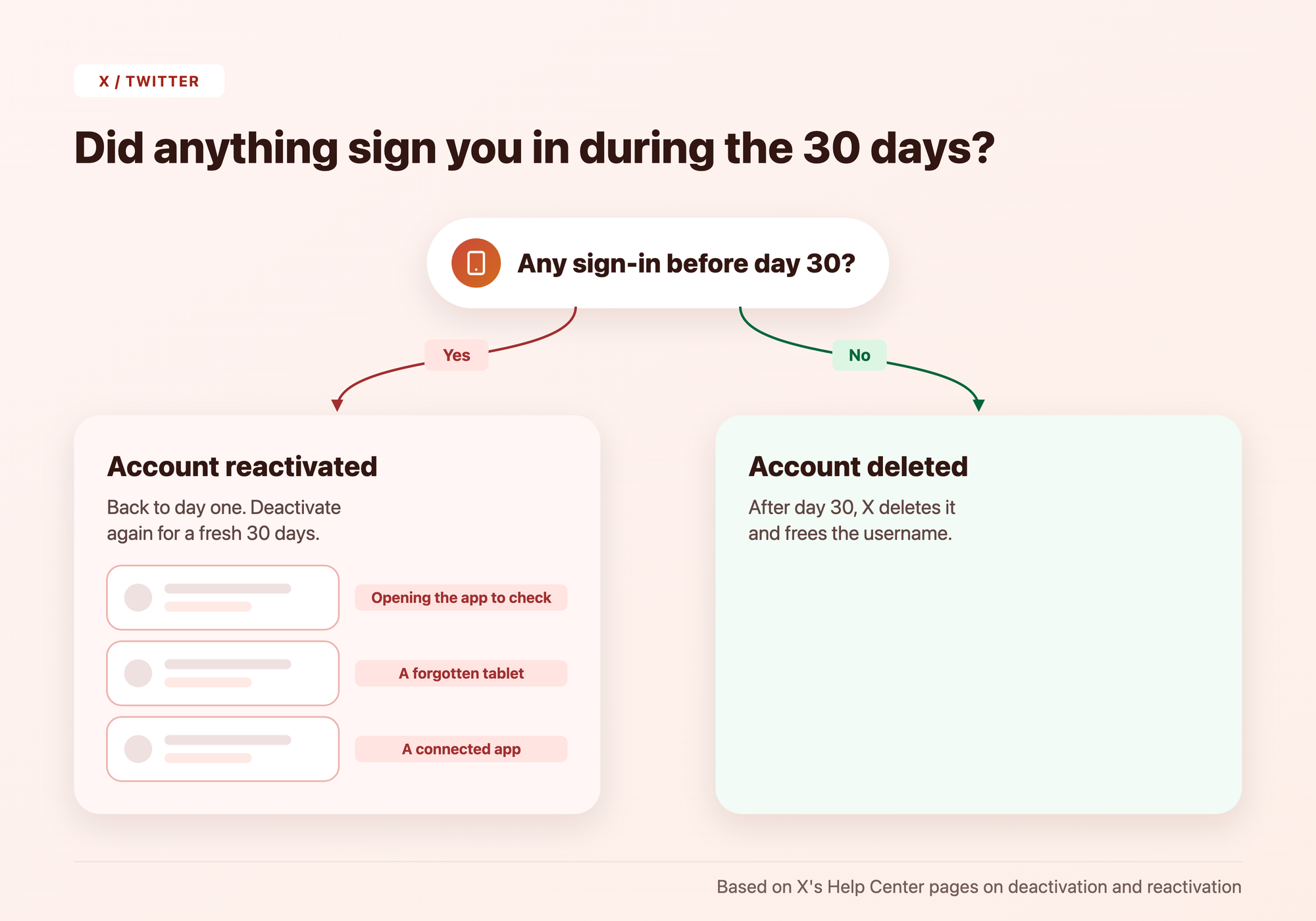
- Opening the app "just to check" and signing in at the prompt.
- A forgotten tablet or second phone still signed in.
- Connected apps that sign in with your X account in the background.
- A saved login in your phone's browser that you tap without thinking.
Any one of them reactivates the account. X sends you back to day one, with a fresh 30 days to wait once you deactivate again.
Deleting a Twitter account from mobile, in short
Deleting a Twitter account from mobile is a deactivation in the X app followed by 30 days of silence.
On iPhone the path runs through "Your account", on Android through "Account", and both end with "Yes, deactivate".
Before you tap, download your archive, cancel in-app subscriptions and revoke connected apps. After you tap, stay signed out everywhere.
When day 30 passes, X deletes the account and frees the username. Until then, signing in brings everything back.
Mobile account deletion questions
Can I delete my account from the mobile browser instead of the app?
X documents the web steps for x.com, starting from the More icon. It doesn't publish separate steps for a phone's browser.
Does deactivating on my phone also deactivate it on my computer?
Yes. Deactivation applies to the account, so X hides your profile on x.com and both apps at once.
Will I get an email confirming the deactivation?
X's deactivation page doesn't describe one. It does mention reactivation emails, so watch your inbox for any you didn't expect.