Twitter banner size limits: what X publishes and what it crops
Twitter banner size limits of 2MB or 5MB aren't X's header rules. Use 1500x500 at 3:1 and keep text clear of the 60px top and bottom crop.
Size guides keep quoting a 2MB or 5MB cap on the Twitter banner size, and X's help center backs neither for headers. The 2MB figure belongs to profile photos, and 5MB to photos in posts.
What's the maximum pixel limit for a Twitter banner?
X publishes no maximum pixel limit, so the recommended Twitter banner size of 1500x500 pixels (a 3:1 ratio) works as the ceiling; X displays no header copy larger than that. Upload it as a JPG, a PNG or a still GIF, and hold text back from the borders, since X warns that 60 pixels at the top and bottom may be trimmed and your profile picture sits over the bottom-left corner.
Read on for X's documented specs, the safe area in exact pixels, the file-size answer, the fixes for a blurry header and the upload steps.
What X documents about Twitter banner size
X's official word on headers fits on two help pages. One is How to customize your profile. The other is Help with uploading a profile photo.
Between them, they settle most of the spec and leave two blanks. X calls the image a header photo and notes that it's also known as a banner, so both words point to the same 1500x500 file.
| Spec | What X says |
|---|---|
| Header size | 1500x500 pixels recommended |
| Header shape | 3:1, which follows from 1500x500 |
| File types | JPG, GIF or PNG |
| Animated GIF | Not supported for profile or header images |
| Edge crop | Up to 60 pixels at the top and bottom |
| Maximum pixels or file size | Not published for headers |
| Profile photo | 400x400 pixels recommended, 2MB maximum |
The blanks are the two numbers people search for most.
Everything a design depends on, the size, the shape, the formats and the crop, is written down.
Why 1500x500 works as the ceiling on X
A missing maximum matters less than it sounds, because X decides what gets shown. After an upload, X stores the header as a set of fixed-size copies (1500x500, 1080x360, 600x200 and 300x100, plus a few 2:1 versions), and none of them is bigger than 1500x500.
Ask X's image servers for a larger version of a live header, 3000x1000 for example, and the request fails instead of returning a sharper file.
Design as large as you like, then export at exactly 1500x500 so you control the downsizing.
The safe area inside a 1500x500 X header, in pixels
Treat the header as a 1500x500 canvas with four strips that can disappear:
- The top 60 and bottom 60 pixels, which X says can be cropped depending on the monitor and browser.
- The outer 250 pixels on the left and on the right, which X removes in its 2:1 copies.
- The lower-left corner, where the profile photo overlaps the header.
- The two top corners on phones, where the app's back arrow and menu icons sit.
That leaves a live area from 250 to 1250 pixels across and from 60 to 440 pixels down: 1000x380 pixels for everything that must be read.
The top and bottom figure is X's own. Its upload-help page says even a correctly sized header can lose those strips, and it blames the way different monitors and browsers display the image.
Together, the two strips can take 24% of the header's height.
Mark the live area as guides before you design
Any design app that supports guides can hold the live area for you. Add vertical guides at 250 and 1250 pixels and horizontal guides at 60 and 440, then shade the lower-left corner where your photo will land.
X's business guide suggests using the header "like a billboard to share what's new or timely," in the words of Get your business started with X.
A billboard changes, so save the guided file as a template, and each new message drops into a layout that already clears every crop.
Where the side trim comes from
The side trim is the one most guides miss. X keeps 2:1 copies of every header, named web, ipad and mobile, in addition to the 3:1 versions.
When I compared those copies with the full image, each one was cut from the center. A 3:1 design loses a sixth of its width on each side in them, which is why the live area stops 250 pixels short of both edges.
The corners on your own profile
On your own profile, the other two strips are easy to spot. The photo overlaps the header's lower-left edge, and on a phone the back arrow and the icons opposite it sit on the header's top corners.
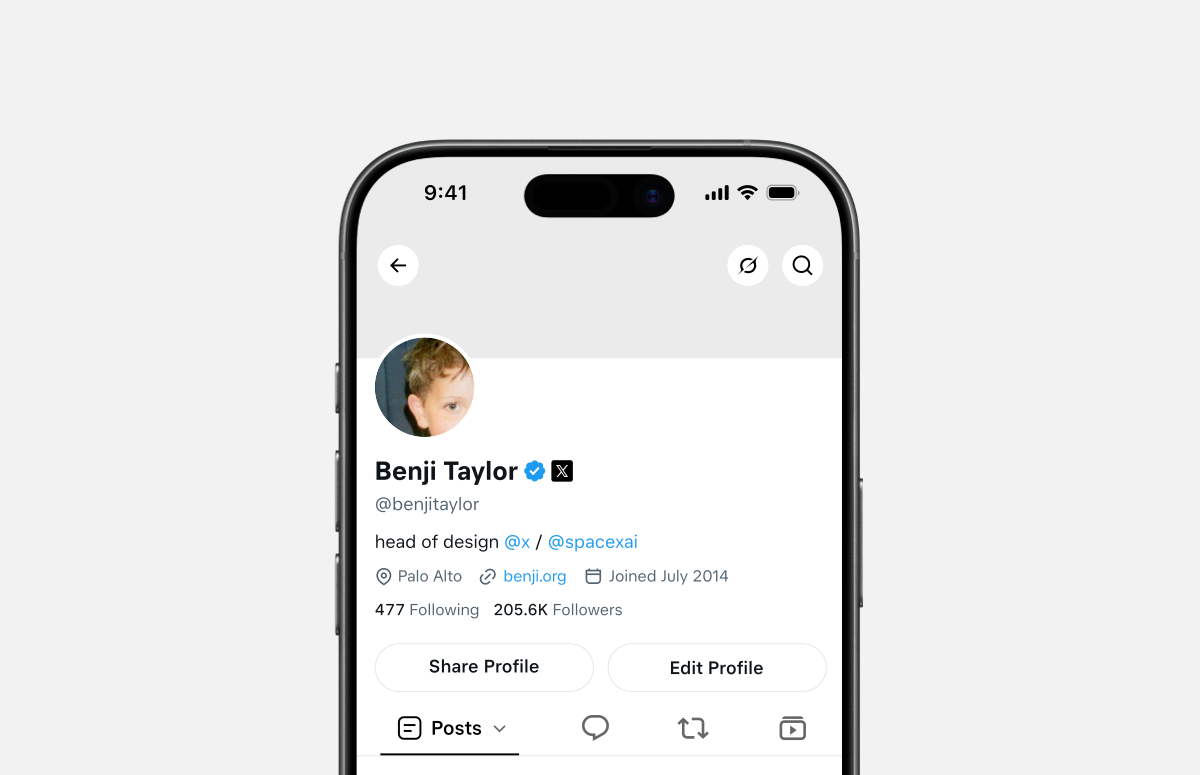
Size that photo while you're at it: X recommends 400x400 pixels, with a 2MB maximum.
Before exporting the header, drop a placeholder circle of your photo into its lower-left corner, so you can see exactly what the overlap hides.
Organization accounts have a slightly bigger corner to protect. According to X's page About profile labels, gold-checkmark organization accounts show a square profile picture, and a square's corners reach into space a circle leaves free.
Is there a separate Twitter header size for mobile?
No. X takes one header file for every device, and 1500x500 is the size it recommends for all of them; there's no separate mobile upload.
The device versions are X's job. From your single file it produces 3:1 copies at several sizes and 2:1 copies named for web, iPad and mobile screens.
What changes from screen to screen is the crop and the buttons laid over the header, not the file you supply.
That's why one design has to satisfy every screen at once. The live area above is simply the part all of them show.
Does X set a file size limit for Twitter headers?
No. X's help center gives no file-size limit for header images, even on the page that recommends 1500x500 for them.
The two numbers in circulation come from other rules. 2MB is X's maximum for profile photos, stated on that same upload-help page.
5MB is X's limit for photos attached to posts, listed on its help page for photos and GIFs in posts. The same page allows animated GIFs up to 5MB from mobile and up to 15MB from the web.
At 1500x500, file size is seldom the constraint anyway. In my test, a detailed 1500x500 photo came to about 555KB saved as a PNG and about 114KB as a JPG at 90% quality, both far below 2MB.
If you want a number to design against, use 2MB.
It's the strictest limit X publishes for any profile image, so a header under it clears every rule X has written down.
Why does a Twitter header look blurry after upload?
A Twitter header looks blurry when the file is too small for the space it fills, or when fine detail doesn't survive the reduced copies X makes of every header.
Start with a file of at least 1500x500. On a high-resolution screen, a smaller image has to be enlarged to fill the header, and enlarged pixels look soft.
Then design for the smallest copy. X's reduced versions go down to 300x100, a fifth of the full width, so hairline fonts and long lines of small text break up first.
A quick test: shrink your export to 300x100 in your design app, and if the words still read, they'll hold up in every copy.
Pick the file type by content. PNG keeps flat colors and lettering crisp in your export, while JPG makes much smaller files for photographs, as the test above shows. X accepts both, so choose the one that suits the image.
Last, look at the new header on a phone and on a laptop. The crops differ by screen, so a header that looks right on one can still clip on the other.
Cropping a photo to fit the X header's 3:1 shape
Most photos aren't 3:1, so crop them yourself instead of leaving the framing to X's upload preview.
A phone photo at 4000x3000 pixels keeps its full width at 3:1 only as a 4000x1333 strip, which means giving up more than half of its height. Choose that strip in your editor, then resize it to 1500x500.
Keep the subject's face or the product inside the live area rather than on the strip's top or bottom edge, because those rows are the ones X may crop again.
A photo narrower than 1500 pixels can't make a sharp header at any crop, since it would have to be enlarged. Start from the largest original you have.
How to change your Twitter header without losing the edges
The upload takes four steps, and they're the same on the web and in X's iOS and Android apps:
- Open your profile and select Edit profile.
- Tap or click the camera symbol over the header image, choose Upload photo, and select your 1500x500 file.
- Select Apply when you're happy with the preview; X notes that nothing saves until you click it.
- Select Save.
Because the file is already 3:1 with its words inside the live area, the preview has nothing important to cut.
If the upload fails, X's troubleshooting checklist starts with:
- Where you upload from (X.com or an official X app).
- The file type (JPEG, GIF or PNG).
- Your browser, which it suggests updating or switching.
Summary: an X header that survives every crop
The recommended Twitter banner size, 1500x500 at 3:1, is also the practical maximum, because X shows no copy larger than that.
Keep the words inside the 1000x380 live area, save the file as a JPG or PNG under 2MB, and upload it through Edit profile.
Get those three right and the header reads the same on every screen that shows it.
Reuse, removal and display name questions about your X header
Can you reuse your Twitter header as a post image?
Not if you want it shown whole. X's help center promises full display for a single photo only when its aspect ratio falls between 2:1 and 3:4.
A 3:1 header is wider than that, so rebuild it at 16:9 or 1:1 for the post.
How do you remove a header on X?
Open your profile, select Edit profile, then use the camera symbol on the header and choose Remove. Select Save to confirm the change.
Why can't I change my display name on a new X account?
X's help center explains that during first-time profile setup, the option to change your display name doesn't appear until you've uploaded both a profile photo and a header photo. Add the two images, and the option shows up.