
How to find Twitter message requests and deal with each one
See Twitter message requests by opening Chat on X, then Message requests; accept, delete or block each one from accounts you don't follow.

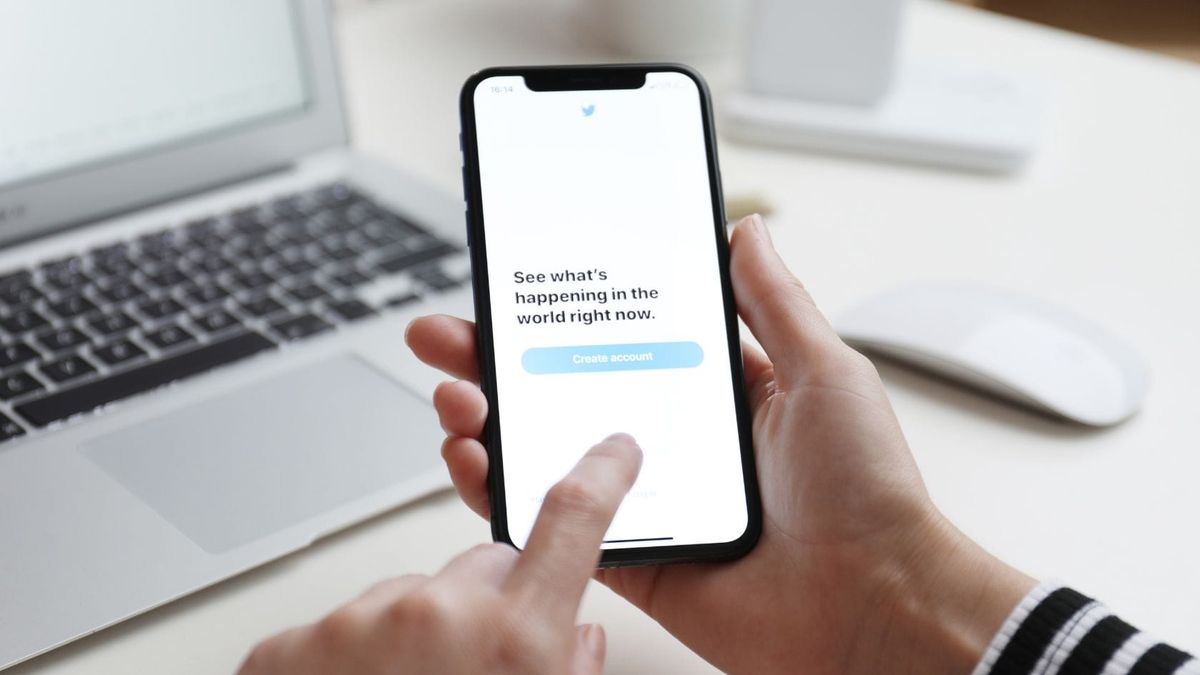
Someone says they sent you a DM on X, but your inbox shows nothing new.
Messages from accounts you don't follow usually wait in message requests, a separate list that's easy to miss.
Your Twitter message requests are in Chat, under Message requests.Open Chat on x.com or in the X app, called Messages on older versions.Select Message requests, labeled Requests in some versions.Read the Priority tab, then the Hidden tab.Open a request, then accept, delete or block it.
The steps below add where filtered requests end up, how to choose what to do with each one, and the settings that decide who can send you a request.
How to find Twitter message requests, step by step
The route barely changes between x.com and the iPhone or Android app.
- Open Chat. Tap the Chat tab in the app's toolbar, or pick it from the left-hand menu on x.com. On versions that haven't moved to Chat, the same place says Messages and shows an envelope.
- Go to Message requests. Some versions call it Requests. It holds messages from accounts you don't follow, plus new group chats that someone you don't follow put you in.
- Switch between Priority and Hidden. X's help page About Chat explains that Grok sorts requests into these two inboxes, so a message you expect can sit in either one.
- Read a request without replying. Until you accept, the sender can't tell you've seen it, and photos or videos stay covered until you choose View media.
Reading both tabs before you touch anything is the habit that matters here.
The sorting is automatic, and the sender learns nothing from your reading, so there's no cost to looking first.
Why a message request might not show up on X
A request you can't find has usually been sorted, filtered, pushed down or never sent. Each of those has a different fix.
The request may be sitting in X's hidden inbox
According to X's Chat help, Grok decides whether each request lands in Priority or in Hidden.
Hidden is the tab people forget, so open it whenever a message you were told about hasn't appeared in Priority.
The quality filter may be holding it
In the iPhone and Android apps, X filters out requests it considers lower quality, and the filter is on by default.
Filtered requests don't send notifications, but they're still there, behind the filter at the bottom of your requests.
That filter exists because spam and real messages arrive side by side. The artwork for the DM part of X's privacy guide makes the point with three bubbles: a cheerful "Hey girl hey!!" next to "awesome deal $$$$ inside!" and a line of "Spam spam spamspam".

X's help entry About Direct Messages explains how to turn the filter off. Open Change settings at the top of your requests, then switch off Quality filter in the Privacy section of your message settings.
Graphic media pushes it to the bottom
X puts a warning over graphic media in DMs by default. When that media comes from someone you don't follow, X also handles the message as spam and drops it below everything else in your request inbox.
You can switch that graphic media filter off, but requests stay covered either way. X hides all media from people you don't follow until you tap View media, so turning the filter off takes away the graphic-media label on a request, not the cover.
The sender may have used up their daily requests on X
X limits how many requests any account can send per 24 hours, from 7 on a free account up to 500 on Premium Business, according to its Chat help. Someone who has spent that allowance on other people has to wait before a request to you can go out.
Your settings may have stopped it being sent
If your settings admit neither everyone nor verified accounts, most strangers can't message you at all. There's no request to find in that case, because X never delivered one.
The section on who can send you a request, further down, shows who gets through and where those switches live.
Accept, delete, block or report: matching the choice to the Twitter message request
Pick by what you want from the sender next: a conversation, silence, or no contact at all.
X's help pages give you five ways to answer a request:
- You want to talk, so accept. The conversation moves into your inbox and you can reply.
- It's harmless but unwanted, so delete. It leaves your list, though the account can send another request later.
- You're unsure, so leave it. X's Chat help names ignoring a request as a choice, and the sender still gets no read status.
- They keep writing, so block. Blocked accounts can't message you until you unblock them.
- It's spam, a scam or abuse, so report. Open the conversation's information icon, choose Report and confirm.
Delete tidies your list; only a block or a report keeps the sender out.
Two examples show how the choice plays out.
A reporter who wants to quote one of your posts is a stranger with a real reason to write, so accept.
A message saying you've won a prize and asking you to log in on another site is a scam pattern, so report it instead of deleting it, and that account loses its way back to you.
Reporting a Twitter message request, and what it stops
X's Direct Message FAQs spell out what a report does: the account can't message you until you message them first.
That makes reporting useful beyond spam, for anyone you don't want to hear from again.
In Chat, you can also report one message rather than the whole conversation. Long-press the message, and X's Chat help says you'll get the option to report it for review.
What accepting a request changes on X
Accepting changes more than where the message sits. Chat carries requests without encryption; once you accept, X lets both of you know the conversation is now encrypted, and your read receipts start applying unless you've turned them off.
Accept is also the one choice your settings can't undo later.
Once a conversation exists, turning requests off doesn't stop that person, because X keeps established conversations open. From then on, only a block or a report cuts them off.
Who can send you a message request on Twitter
Only accounts you don't follow ever land in requests, and X lets them reach you in a handful of cases.
Such an account can write to you when:
- your settings accept requests from anyone
- it carries a verification checkmark and you've opted in to requests from verified users
- you messaged it first at some point
- you're both members of one Premium Business or Premium Organization
The third case works in your favor when you contact a business or a stranger first. Your own message opens the conversation, so their reply comes back to it instead of waiting as a request.
Creators have one extra option: a setting that lets subscribers message them, which X leaves off by default.
Changing who can send you requests on X
The setting sits in the Direct Messages section on every device, though X's help center names it two ways: Allow message requests from everyone in some places, Receive messages from anyone in others.
- Open Settings and privacy from the app's navigation menu or profile icon, or from More on x.com.
- Select Privacy and safety.
- Find the Direct Messages section.
- Turn requests from everyone on or off, or choose the option that allows requests only from verified users and people you follow.
Check it even if you've never changed it. Some new accounts come with requests turned on from the start, according to X's help center.
Should you keep Twitter message requests open?
Keep them open if strangers have good reasons to reach you, and narrow them if most of what arrives is noise.
Each setting trades reach for quiet:
- Open to everyone: customers, collaborators and reporters can write without following you, while Hidden and the quality filter soak up much of the junk.
- Verified accounts only: a smaller pile, but anyone without a verification checkmark can't get through, including ordinary customers and readers.
- Closed: only people you follow and people you've messaged before can write, so a stranger with a real reason has no way in.
X itself points out that businesses in particular tend to accept messages from anyone, which fits accounts that handle customer questions by DM.
A personal account that mostly hears from friends loses little by closing requests, since friends usually follow each other anyway.
Letting someone reach you on X without a request
X has added X Numbers, an optional number you can share with anyone you want to hear from. According to the @chat announcement of X Numbers, people with your number can message or call you even if you don't follow them, without you accepting a request or following them back.
That gives you a middle path. Instead of opening requests to everyone and sorting the flood, you can keep requests narrow and hand your number to the few people who should get straight through.
New features on X often reach accounts in stages, so if you don't see X Numbers in Chat yet, look again after the next app update.
The next time a Twitter DM seems to go missing
When someone tells you they messaged you and nothing arrived, you now have an order to follow:
- Priority
- Hidden
- The bottom of the list where filtered requests wait
- Your Direct Messages settings
Work through it and you'll know whether the message is waiting, filtered or never sent.
Over the coming weeks, one small habit keeps your Twitter message requests from turning into a backlog.
Decide on each request when you open it, rather than leaving it for later, and glance at Hidden whenever you're expecting to hear from someone new.
Twitter message requests: questions on deleting, protected accounts and verified senders
Does X tell someone when you delete their Twitter message request?
X documents no alert that tells a sender you deleted their request.
What it does document is that they can't see whether you read it until you accept, and that deleting doesn't stop them from sending another.
Can a protected X account receive message requests?
Yes. X's Direct Message FAQs say your post privacy doesn't change your message settings, so with Receive messages from anyone switched on, a protected account gets requests like any other.
Why do verified accounts still reach your requests after you limited them?
Because the verified-only option lets them in. When you allow requests only from verified users and people you follow, a verified account can message you, and if you don't follow it, that message lands in your requests.