
How to Submit a Sitemap to Google Search Console
A step by step guide to finding or generating your sitemap, submitting it correctly in Google Search Console, and fixing common submission errors.

You publish a new set of pages, maybe a blog relaunch, a new product category, or a full site migration, and a week later half of them still aren't indexed in Google Search Console. You search for the exact title of a page on Google and it doesn't show up. This isn't rare. It's one of the most common early-stage SEO problems, and it usually traces back to one thing: Google doesn't know the pages exist yet, or it knows but hasn't gotten around to checking them.
A sitemap doesn't fix this by magic, but it's the most direct way to hand Google a list of URLs and say "these are the pages I want you to be aware of." This guide walks through what a sitemap actually does, how to find or generate one, how to submit it in Search Console, and how to read the results once Google starts processing it.
📢 Website migration 101: What website owners should know
What a Sitemap Actually Does (and Doesn't Do)
A sitemap is an XML file that lists the URLs on your site you want search engines to know about. At minimum it's a list of <loc> tags with URLs. Most sitemaps also include a lastmod value, the date a page was last modified. That field is useful to Google when it's accurate: it's one of the few sitemap signals Google has confirmed it actually uses to help decide when to recrawl a page.
Two other fields in the sitemap protocol, priority and changefreq, are largely decorative at this point. Google has said directly that it does not use priority to decide crawl order and treats changefreq as unreliable, since site owners rarely keep it accurate. You can leave these out of a hand-built sitemap without losing anything.
Here's the part that trips people up: a sitemap is a discovery mechanism, not an indexing guarantee. Submitting one tells Google "these URLs exist, please go check them." It does not force indexing and does not affect ranking. Google still has to crawl each URL, evaluate it, and decide whether it's worth adding to the index. For a small site with a handful of pages already linked from the homepage, a sitemap makes little difference; Google will find those pages through normal crawling anyway. Sitemaps earn their keep on large sites, new sites with few inbound links, sites with pages buried deep in the navigation, or sites where content changes often enough that you want Google checking back on a predictable basis.
The Walkthrough
Step 1: Find or Generate Your Sitemap
Before you touch Search Console, confirm the sitemap actually exists and loads correctly in a browser.
- WordPress: With Yoast SEO, RankMath, or All in One SEO, a sitemap is generated automatically, usually at
/sitemap_index.xml(Yoast) or/sitemap.xml(RankMath, AIOSEO). Check your plugin's SEO settings for the exact path. - Shopify: Auto-generates a sitemap at
/sitemap.xmlfor every store, no plugin needed. - Wix and Squarespace: Both generate one automatically at
/sitemap.xmlonce the site is published and indexing is enabled in settings. - Custom-built sites: Generate one via a script, a sitemap generator tool, or a module built into your framework.
Open the sitemap URL directly in your browser. You should see readable XML with a list of <url> entries. A 404 means the sitemap either doesn't exist yet or lives at a different path than you assumed.
For large sites: more than 50,000 URLs is past what a single sitemap file can hold under the sitemap protocol (the cap is 50,000 URLs or 50MB uncompressed per file, whichever comes first). In that case you'll have a sitemap index file, typically /sitemap_index.xml, that lists multiple child sitemaps, often one per content type or per year. You submit the index file to Search Console, and Google follows it to the child sitemaps automatically.
If your site leans heavily on images, video, or news content, you may also have specialized sitemaps: image sitemaps and video sitemaps extend the standard protocol with extra tags for that media, and news sitemaps exist for sites in Google News. Most CMS sitemap plugins generate these automatically when the content type is present.
Step 2: Submit the Sitemap in Search Console
- Go to Google Search Console and sign in.
- Select the correct property from the dropdown at the top left, matching the domain or URL prefix your sitemap lives under.
- In the left sidebar, click Sitemaps.
- Under "Add a new sitemap," enter just the path, not the full URL. Since the domain is already tied to the property, type
sitemap.xmlorsitemap_index.xml, not the fullhttps://example.com/sitemap.xml. - Click Submit.
Google will queue the sitemap for processing. This isn't instant; it can take anywhere from a few minutes to a day or two before the status updates.
Step 3: Read the Results
Refresh the Sitemaps report and you'll see the submitted sitemap listed with a few columns:
- Submitted: the date you submitted it.
- Last read: the last time Google actually fetched and processed the file.
- Status: this is the one to watch. You'll see one of a few outcomes: Success (Google fetched and parsed it fine), Couldn't fetch (Google tried to access the URL and failed), or Has errors (Google fetched it but found problems inside).
- Discovered URLs: the number of URLs Google found in the sitemap.
Click into the sitemap entry for more detail if there's an issue. "Couldn't fetch" is almost always one of three things: the sitemap URL is wrong or has moved, robots.txt is blocking access to the sitemap file, or the server returned an error when Google tried to fetch it. "Has errors" usually means malformed XML (a broken tag, invalid characters) or URLs that don't resolve properly, like ones pointing to a different domain than the property.
One important distinction: "discovered" in the Sitemaps report just means Google saw the URL in your file. It does not mean the page is indexed. To check actual indexing status, use the Pages report (formerly called Coverage) under the Indexing section, or run individual pages through the URL Inspection tool. The sitemap gets Google's attention; the Pages report tells you what it decided to do with that attention.
Practical Tips and Edge Cases
- Reference your sitemap in robots.txt. Add a line like
Sitemap: https://example.com/sitemap.xmlto your robots.txt file. This isn't required for Search Console submission to work, but it means any crawler, not just Google, can find your sitemap on its own. - Check that robots.txt isn't blocking anything it shouldn't. A sitemap listing a page that's disallowed in robots.txt sends Google a mixed signal. Make sure the sitemap file itself and the pages inside it aren't caught by a
Disallowrule. - You generally don't need to resubmit after every content update. If your sitemap is generated dynamically and reflects your current URLs, Google recrawls it on its own schedule. Resubmitting is mainly useful after a structural change, like a domain migration or a fix to a sitemap that previously had errors, when you want to nudge Google to take another look sooner.
- Don't bother with a manual sitemap for a five-page brochure site. If your entire site is linked from the homepage nav with no crawl depth problem, a sitemap adds very little. It's not harmful, it's just not solving a problem you have.
- Watch the discovered URL count over time. A sharp drop between crawls is often a sign your sitemap generation broke, not that Google decided to ignore half your site.
Discovery Works Differently Off Your Website
Everything above is about how Google finds and evaluates pages on your website. But Google made a notable move in July 2026 that's worth factoring into how you think about discovery more broadly: Search Console now supports platform properties. When you set up a new property, alongside the familiar URL-prefix and domain options, you can register Instagram, TikTok, X, or YouTube as a property type and see how content from those accounts performs specifically in Google Search and Discover results.
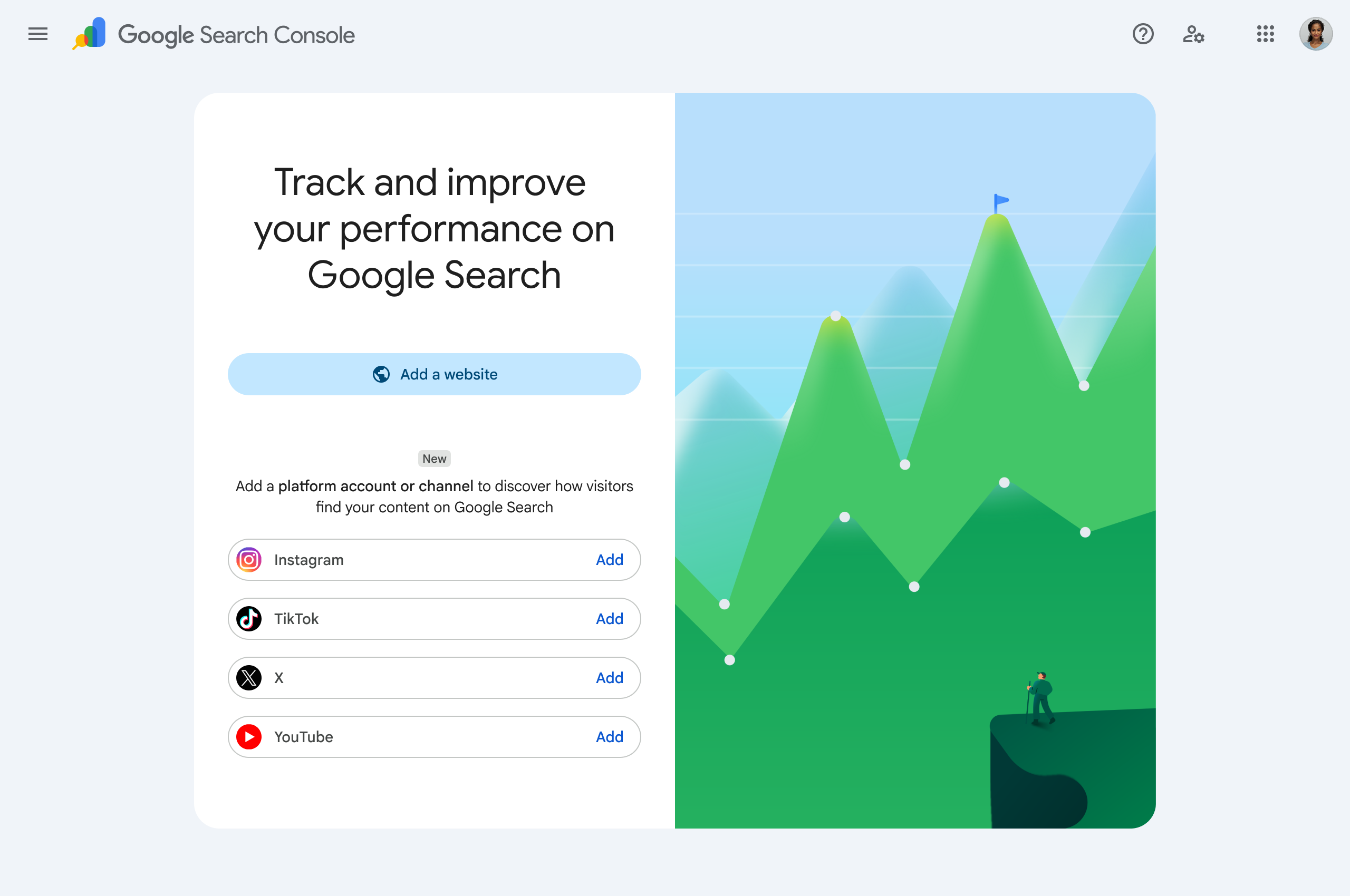
The practical implication is that Google is now explicitly telling site owners that content posted to these platforms shows up in Search and Discover, and it's giving you a tool to measure it. That's worth sitting with. It means "SEO" isn't a website-only discipline anymore, at least not in Google's own framing of what it's willing to report on.
The catch is that discovery on those platforms doesn't work anything like sitemap discovery. There's no XML file you submit to TikTok telling it which videos exist. Visibility runs instead on platform algorithms, hashtag and topic signals, and engagement velocity: how quickly a post gets interactions after it goes live, which influences how far the platform's distribution system pushes it, and now, apparently, whether it surfaces when Google crawls that platform for Search and Discover.
FAQ
Do I need to submit a sitemap for Google to index my site at all? No. Google discovers pages through normal crawling and following links, with or without a sitemap. A sitemap makes discovery more reliable and often faster, especially for large or poorly linked sites, but it's not a strict requirement.
How long does it take after submitting a sitemap for pages to get indexed? There's no fixed timeline. Submission adds the sitemap to Google's queue, which can process within hours or take a few days. Indexing of the individual URLs depends on separate crawl and quality evaluations, and can take days to weeks.
What does "Couldn't fetch" mean and how do I fix it? It means Google tried to access your sitemap URL and failed. Check that the URL is correct and loads in a browser, confirm robots.txt isn't blocking it, and check your server logs for errors around the time of the fetch.
Can I submit multiple sitemaps to the same property? Yes. You can submit as many individual sitemaps or sitemap index files as you need, and each shows up as its own row in the Sitemaps report.
Should I remove a sitemap from Search Console if I stop using it? You can, via the menu next to the entry in the report, though an old sitemap that's no longer updating doesn't actively hurt anything. It's cleaner to remove it if it points to a defunct URL structure.
Does having a sitemap improve my ranking? No. A sitemap affects discovery and crawling, not ranking. Ranking depends on Google's assessment of the page's content, relevance, and quality once it's indexed.
If you're focused on your website's technical foundation, submitting and monitoring your sitemap in Search Console is a five-minute task worth doing this week if you haven't already. And if you're also managing an X presence alongside that website, it's worth looking at how consistently you're publishing there too, since that's doing a version of the same job a sitemap does, just on a platform with entirely different rules.