
How to Link Google Search Console to Google Analytics (GA4): A Step-by-Step Guide
Step by step instructions for linking Google Search Console to Google Analytics 4, the permissions each side needs, and fixes for common linking errors.

The Problem: Two Tools, Half an Answer Each
Google Search Console tells you what people typed before they found your site: the queries, the impressions, the click-through rate, the average position. Google Analytics 4 tells you what those same people did once they landed: which pages they read, whether they signed up, whether they bought anything, how long they stuck around. Both tools are describing the same visitor journey, just from opposite ends of it, and by default they don't talk to each other.
That split forces a workflow a lot of marketers know too well: open GSC, filter by landing page, note down the top queries, switch tabs, open GA4, filter by that same landing page, note down the conversion rate, and manually line the two lists up in a spreadsheet. It works, but it's slow, it's error-prone, and it doesn't scale past a handful of pages.
Linking Search Console to GA4 doesn't merge the two tools into one. It does something more modest and more useful: it pipes GSC's search data into GA4's reporting interface so you can see query-level and landing-page-level search performance next to the engagement and conversion metrics you already track there, without leaving the report.
📢 Read the Reddit discussion on Google Search Console and Google Analytics
Why Google Keeps Them Separate by Default
Search Console and Analytics are built on different data models for good reason. GSC reports on search appearances: how Google's index and ranking systems represent your pages to searchers, aggregated to protect searcher privacy (which is why very low-volume queries get anonymized). GA4 reports on session-level behavioral events: what actually happened inside your property, tied to users, devices, and conversion events you define.
Because those are structurally different systems (one describes Google's relationship to your content, the other describes your visitors' relationship to your site) Google doesn't auto-merge them. The link is opt-in, and even after you set it up, it stays one-directional: GSC data flows into GA4's reporting, not the other way around. GA4 doesn't get pushed into Search Console, and Search Console's own reports don't change at all once you link.
What linking actually changes, concretely, is that a new "Search Console" report collection becomes available inside GA4, populated with query, landing page, click, impression, CTR, and average position data pulled from your linked GSC property. From there you can cross-reference that search data against GA4's own engagement and conversion metrics in the same interface.
The Walkthrough: Linking GSC to GA4
Before you start, confirm two things, because both are required and missing either one is the most common reason this fails partway through:
- You (or someone you can coordinate with) have Owner access on the Search Console property for the site.
- You (or someone you can coordinate with) have Editor access on the GA4 property you want to link it to.
If you're the only admin on both tools, one Google account usually covers both. If your organization splits SEO and analytics ownership across different people or teams, you'll need the GSC owner and the GA4 editor to either be the same person or to sit down together for this step, since GA4 will only let you link to GSC properties that the currently signed-in Google account can already access.
Step 1: Open GA4 Admin. Log into Google Analytics, select the GA4 property you want to connect, and click the gear icon (Admin) in the bottom left of the screen.
Step 2: Find Search Console Links. In the Admin screen, look in the Property column for "Search Console Links" (on some accounts this sits under a "Product Links" section instead, depending on the current GA4 admin layout, since Google has reorganized this menu more than once). Click into it.
Step 3: Start a new link. Click "Link." GA4 will show you a list of Search Console properties that the signed-in Google account has Owner (or at least full) access to. If the property you expect isn't in that list, that's almost always a permissions issue, not a bug, since it means the signed-in account doesn't have sufficient rights on that specific GSC property yet.
Step 4: Choose the Search Console property. Select the GSC property (Domain property or URL-prefix property) that corresponds to the site you're analyzing. Click "Confirm" or "Next."
Step 5: Choose the GA4 data stream. GA4 will ask which web data stream inside this property to associate the GSC link with. Pick the stream whose website URL matches the domain or URL prefix of the GSC property you just selected. This matters more than it looks: if the domains don't correspond (for example, linking a GSC property for a subdomain to a data stream configured for the root domain), the data won't line up correctly in reports later.
Step 6: Review and submit. GA4 shows a summary screen with the GSC property and the data stream you've chosen. Check it, then click "Submit" to finalize the link.
That's it. There's no code to install and no tag to add, since this link runs entirely on Google's back end between the two products.
Where to Find the Data Once It's Linked
After linking, go to Reports in the GA4 left-hand navigation and look for a "Search Console" section (sometimes surfaced under Acquisition, sometimes as its own collection, depending on your GA4 template). Inside it you'll typically find a Queries report and a Landing Page report, both driven by GSC data, which you can then explore alongside GA4's standard engagement and conversion breakdowns for the same pages.
This is the actual payoff: instead of manually matching a spreadsheet of top queries against a separate spreadsheet of conversion rates by landing page, you can see, inside one report, which search queries are driving sessions to a page and whether those sessions convert. You're not getting new data that didn't exist before, you're removing the manual reconciliation step between two data sets that already existed.
Practical Tips and Edge Cases
Domain matching is not optional. A GSC property only produces usable data inside GA4 when it's linked to a data stream whose configured website URL matches that property's verified domain or URL prefix. If you manage www.example.com and blog.example.com as separate GSC properties, each needs its own link to the corresponding GA4 data stream (or streams, if you're tracking them under one property with multiple data streams).
Expect a short delay before data appears. Immediately after submitting the link, don't be alarmed if the Search Console reports in GA4 look empty or sparse. There's typically a brief lag before Search Console data starts populating GA4's reporting, so give it a day or two before assuming something is broken.
Permission errors are almost always about the wrong permission, not a missing one. If you have GA4 Editor access but the GSC property doesn't show up in the linking list, the fix is GSC Owner access on that property, not more GA4 permissions. If you have GSC Owner access but can't reach the linking screen at all, the fix is GA4 Editor access on the property, not GSC settings. It's easy to assume you're "an admin" and have both, so check each tool separately before troubleshooting further.
Multiple properties need multiple links. If a site has several GSC properties (a mobile app alongside a web property, or several subdomains each verified separately), each one that you want reflected in GA4 needs its own link to the appropriate data stream. Linking one GSC property does not pull in data from your other GSC properties automatically.
If a property gets deleted and recreated, relink it. GSC links in GA4 are tied to the specific property record, so if a GSC property is deleted and a new one is verified in its place (even for the same domain), the old GA4 link will stop returning fresh data and you'll need to go back into Admin > Search Console Links and set up the connection again.
One More Data Source Just Joined the Party
Google just gave Search Console a new kind of property to track, and it's worth understanding because it extends the exact problem this article is about. As of July 2026, when you register a new property in Search Console, you're no longer limited to a website (Domain or URL-prefix property). You can now also register a "platform property" for Instagram, TikTok, X, or YouTube, letting you see how that account's content performs specifically inside Google Search and Discover results.
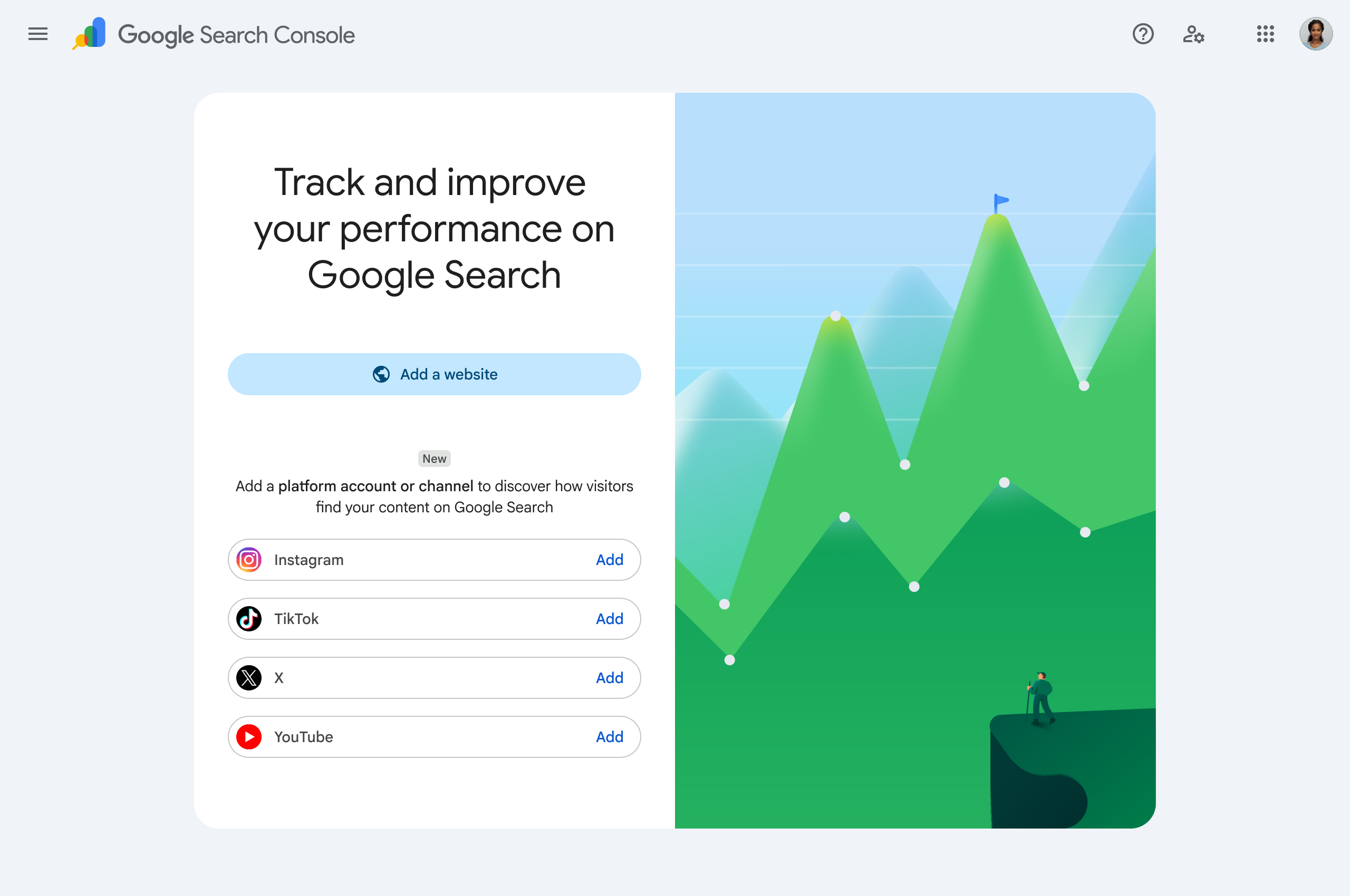
The implication is straightforward: Google is formally acknowledging that your social and video content shows up in Search and Discover, gets impressions and clicks there, and is now measurable through the same console you already use for your website. SEO stops being a website-only discipline the moment you can pull search-specific performance numbers for a TikTok account the same way you pull them for a blog post.
That naturally raises the same question this whole guide has been about: once you have a website GSC property linked to GA4, and now potentially a set of platform properties for your social accounts sitting in GSC too, how do you get one unified view of "how is our presence doing" across all of it? It's worth being precise here: GSC does not merge platform-property data into GA4 the way it does with a standard website property, so there's no single "link" button that pulls your Instagram or X search performance into your GA4 dashboard. That gap is real, and closing it manually still means checking each platform property in GSC and each social platform's own analytics separately.
FAQ
Does linking GSC to GA4 import GA4 data into Search Console? No. The link is one-directional. Search Console data becomes visible inside GA4's reports; nothing flows the other way, and Search Console's own interface doesn't change after linking.
Why can't I find the GSC property I want in GA4's linking screen? GA4 only lists Search Console properties that the currently signed-in Google account has sufficient access to (Owner-level access on the GSC property). If it's missing, get added as an owner on that property in Search Console first, then try the link again.
Can I link one GSC property to multiple GA4 properties, or one GA4 property to multiple GSC properties? You can link a single GSC property to a GA4 data stream, and a GA4 property can have links to multiple GSC properties if it has multiple data streams representing different domains or subdomains. Each GSC property still needs its own explicit link; there's no bulk or automatic linking across streams.
How long does it take for Search Console data to show up in GA4 after linking? There's typically a short delay, so don't expect it instantly. If reports are still empty after a couple of days, re-check the domain match between the GSC property and the GA4 data stream, since a mismatch is a more common cause than a processing delay.
Do the new GSC platform properties for Instagram, TikTok, X, and YouTube link to GA4 the same way a website property does? No. The GA4 linking flow described in this guide is built for website GSC properties tied to a GA4 web data stream. Platform properties for social and video accounts are a separate GSC property type for tracking Search and Discover performance of that content, and they don't feed into GA4's Search Console reports the way a website property does.
Is this still relevant if I'm on Universal Analytics? No, this guide covers GA4 only. Universal Analytics has been deprecated, and GA4 is the current version of Google Analytics that supports Search Console linking going forward.
Next Step
If you haven't linked GSC to GA4 yet, it's a five-minute setup with no ongoing maintenance once the domains match correctly, so it's worth doing before your next reporting cycle rather than after it.