How to Cancel ChatGPT Subscription on the Website
Canceling ChatGPT Plus has to be done through a browser, not the mobile app. Here is the exact path through Settings to cancel your subscription and what happens to your access afterward.
Canceling ChatGPT Plus takes about a minute once you know where to look, but the option is genuinely hard to find on your own the first time.
Already know why you are here? Jump straight to Step 1 below.
The most important thing to know before you start: this can only be done through a web browser. The cancel option does not exist inside the iOS or Android app, so open ChatGPT on a laptop or desktop rather than your phone.
Step 1: Sign In on the Website
Go to chat.openai.com and sign in using the account tied to your subscription. If you have multiple accounts, double check you are logged into the one actually being billed.
Step 2: Open Settings
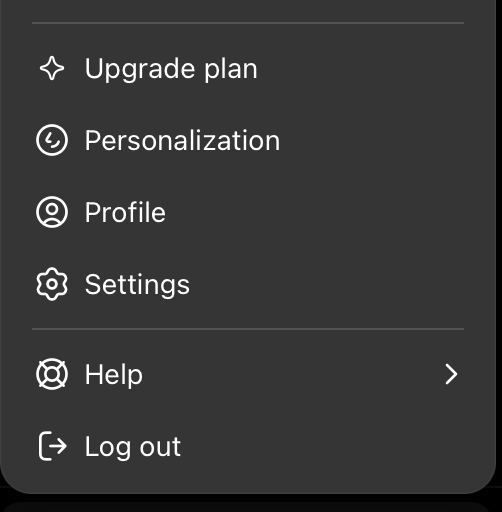
Click your name or email address in the bottom left corner of the screen. A menu will appear. Select Settings near the bottom of that list.
Step 3: Go to the Account Tab
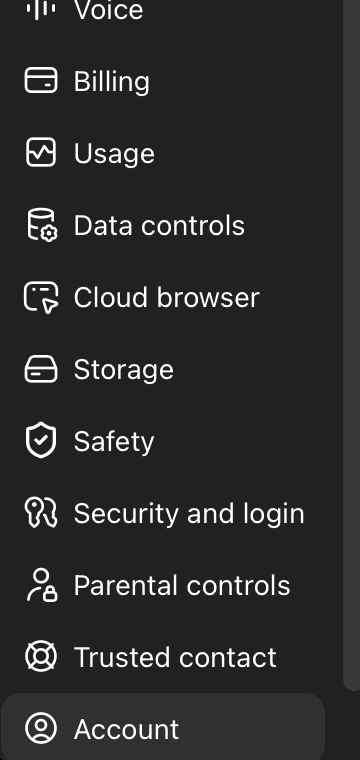
Inside Settings, find the tab labeled Account. This section shows your current plan along with your billing details.
Step 4: Click Manage, Then Cancel
Click the Manage button near the top right of that section, then click Cancel Subscription.
Step 5: Get Past the Retention Screen
At this point, you may see a retention screen offering a discount, a pause option, or extra prompts asking you to reconsider. If your goal is genuinely to stop billing, stay consistent and look for the option that clearly says Cancel, not Back, not Keep Plus, and not Pause unless pausing is actually what you want.
What Happens After You Cancel
Your Plus access does not end immediately. You keep full access until the end of your current billing cycle, and you will not be charged again after that. If you change your mind, you can typically resubscribe at any point before that cycle ends without losing anything.
That is the entire process. The confusing part was never the cancellation itself, it was finding the door.
Sources: How to Cancel ChatGPT Subscription (Web, iOS, Android), How to Cancel ChatGPT Plus Subscription in 2026, How to Cancel ChatGPT Plus Subscription